












Have you ever encountered issues with your PC and decided to reset it to its default mode? Problems with PC are everyday things nowadays, but the good thing is that you can always reset it to default mode.
Unfortunately, sometimes your PC will run into problems or function abnormally and fails to reset – no matter how hard you try!
Remember, you want the PC to function correctly, but now it has failed to reset! What do you do in such a situation? Let’s find out.
Table of Contents
Surefire Ways To Fix There Was A Problem Resetting Your PC
Several things can lead to PC won’t reset issues—for instance, a problem in window files and its programs or even malware.
Since you are not sure what the root cause of ‘my PC won’t reset problem,’ we suggest that you try the following fixes and see whether you get sorted.
1. Restart Your Computer
The first thing you should try is restarting your PC. Restarting a computer kills all the running programs that would otherwise interfere with your PC reset needs.
Once the computer has restarted, try resetting it now and see how it behaves. If the issue blocking the reset function of your PC was a minor one, it should reset just perfectly.
However, if it fails to reset again, something serious needs to be done. Continue to the next fix.
2. Run StartUp Repair
If restarting your computer didn’t solve a problem fixing your PC issue, the next fix you should try is running startup repair.
– Insert the window installation device into your computer and restart it
– Once it restarts, press on any key to allow the PC to boot from whatever the installation device you inserted, i.e., DVD, CD, or external storage
– Select your language and click on Repair My Computer
– A screen will pop up with various options. Click on Troubleshoot, then Advanced Options, and finally Automatic Repair
– Once you are done with this process, restart your PC
– Try to reset it and see whether it responds positively
If it worked for you well and well. However, if your issue remains unsolved, don’t worry. There are more fixes to try.
3. Do System Restore
Doing a system restore is one of the most recommended fixes (by experts) that you should try and see if it solves your issues.
Doing a system restore means getting your PC back to the day you can recall everything was working right.
This is one of the safest approaches to fix your PC as it does not interfere with your important files and data – it will only uninstall the most recent apps (those that you installed after the current restore point)
Performing a system restore is thought to be useful since most of the issues we encounter with our computers arise from the software and apps we install.
There are Very Many Ways to do a System Restore to get rid of “there was a problem resetting your pc”, but the Basic One is;
– On your computer’s search box, type ‘System Restore.’
– Select the option ‘Create a Restore Point’
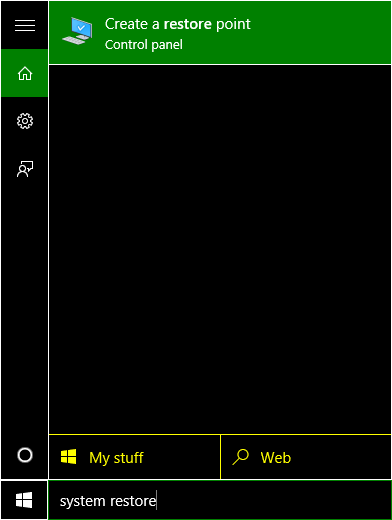
– Click on ‘System Restore”. Proceed to next
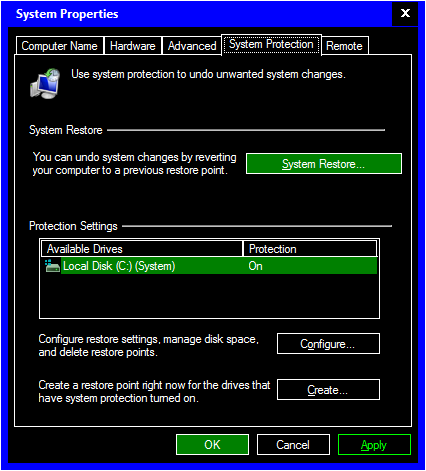
– Click on Finish once you have confirmed the restore point
– Now reboot your computer and try resetting once more.
4. Try System File Checker (or SFC Scan)
If you have tried all the above fixes and none of them gave you the desired results, consider running the system file checker. This is a built-in feature of your PC’s window OS that scans all the files (installed on your computer) to determine what’s not working right.
Supposing you are encountering the PC won’t reset issues as a result of a faulty/corrupted file, running the system file checker will help significantly to fix the error.
Below is One of the Simplest Ways to Run a System File Checker
– Hold the Window Key and X simultaneously

– From the menu that pops up, choose Command Prompt
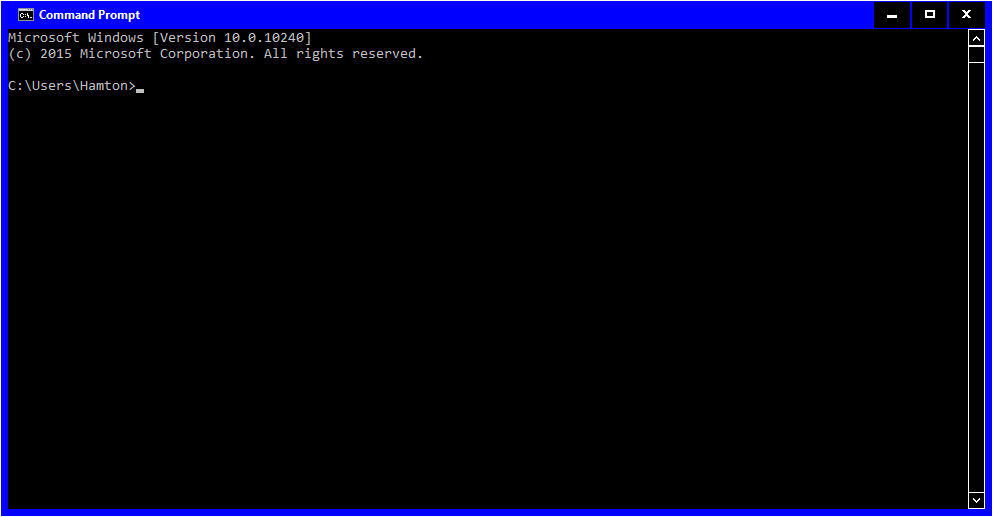
– In the Command Prompt Window, now copy and paste SFC/scannow
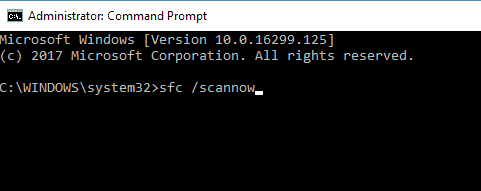
– Wait for the scan to finish. This may take up to 20 minutes to complete. Please don’t interrupt the process, or you won’t achieve the desired results.
If the Above Procedure was not Useful in your Particular Case, Give DSM Scan a Try:
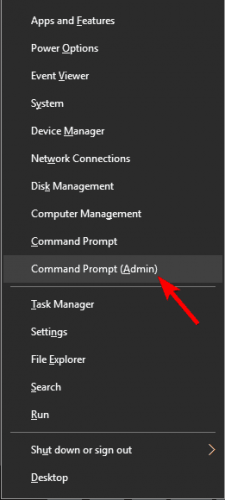
– Open the Command Prompt once more but this time around as an Administrator
– In the Command Prompt Window, copy and paste DISM/Online/Cleanup-Image/RestoreHealth
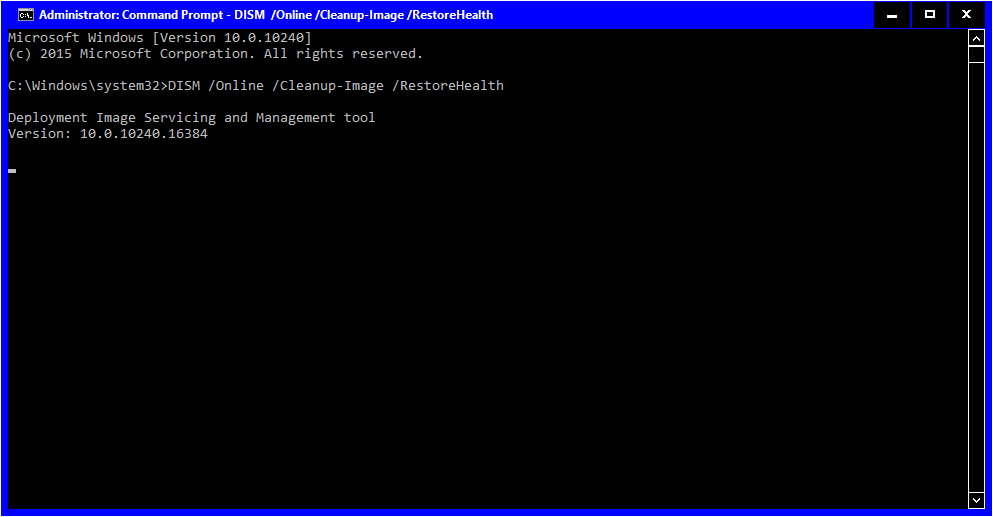
– Wait for the process to finish. Just like the previous case, the process can take up to 20 minutes. Kindly don’t interrupt.
Afterward, Confirm Whether your ‘PC Won’t Reset Error’ was Fixed. It the Error Persists;
– Open Command Prompt once more
– Try entering the following commands
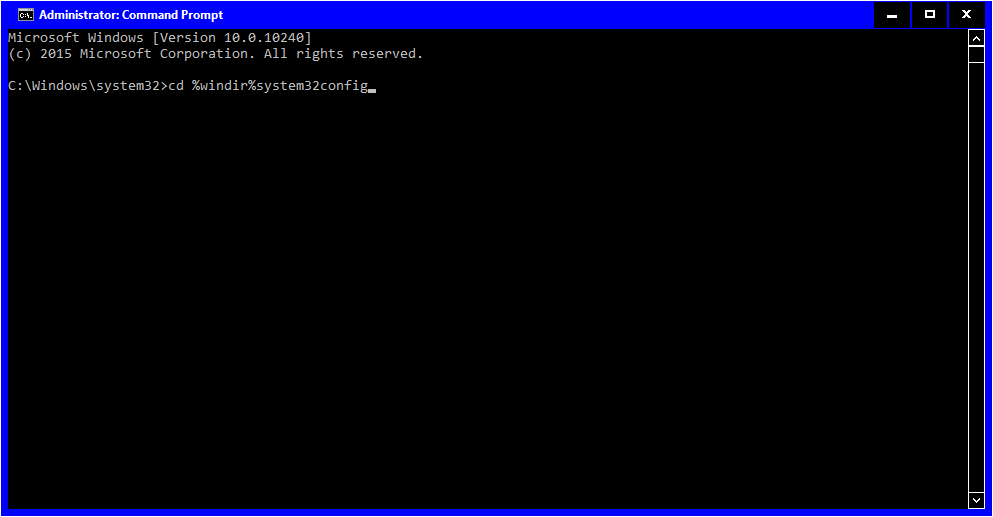
(i) cd %windir%system32config
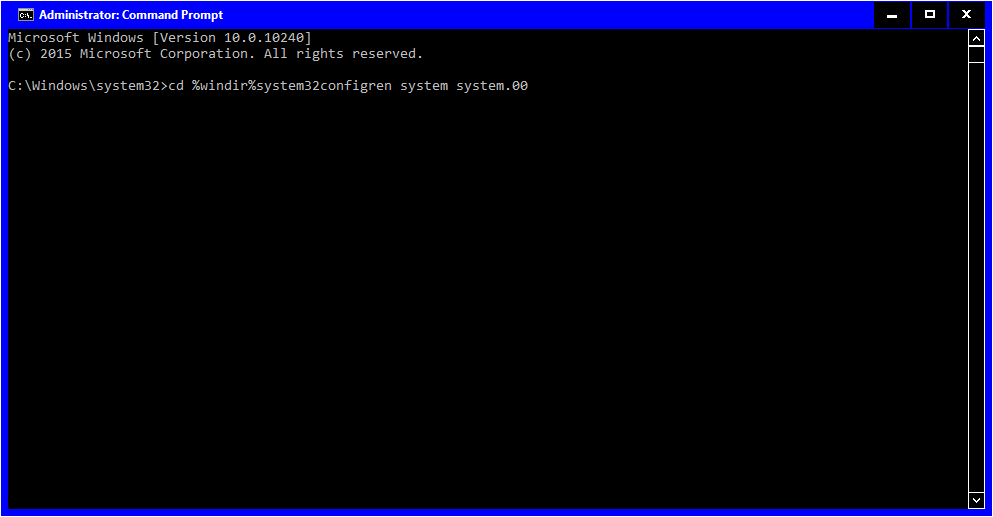
(ii) ren system system.00
(iii) ren software.001
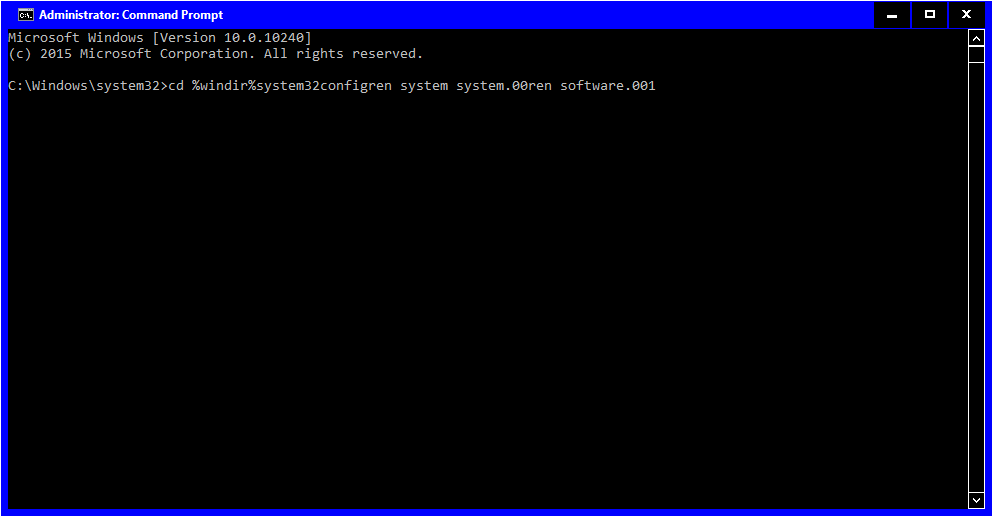
Press enter after each command. This should open the Window Recovery Environment. Click on Continue to boot the windows.
5. Install Recent Updates
Yet another fix you can try is to install the most recent version of your windows. An outdated window may be the root cause of your PC resetting problems. According to Microsoft, an outdated window may cause certain functions of your PC not to work correctly.
You should try to update your OS and see whether this can fix PC resetting bugs.
How to Install Window Updates?
– Go to your PC settings and choose ‘Updates and Security.’
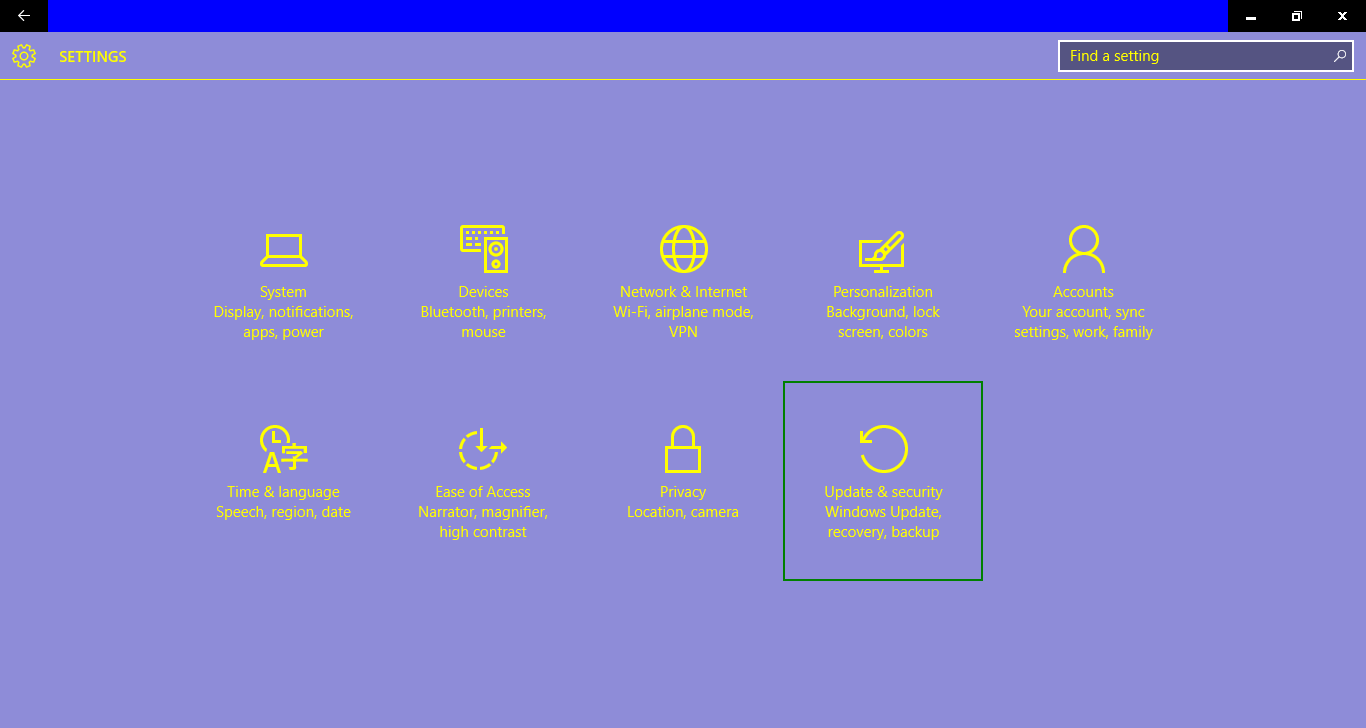
– Right-click on it and choose Window Update
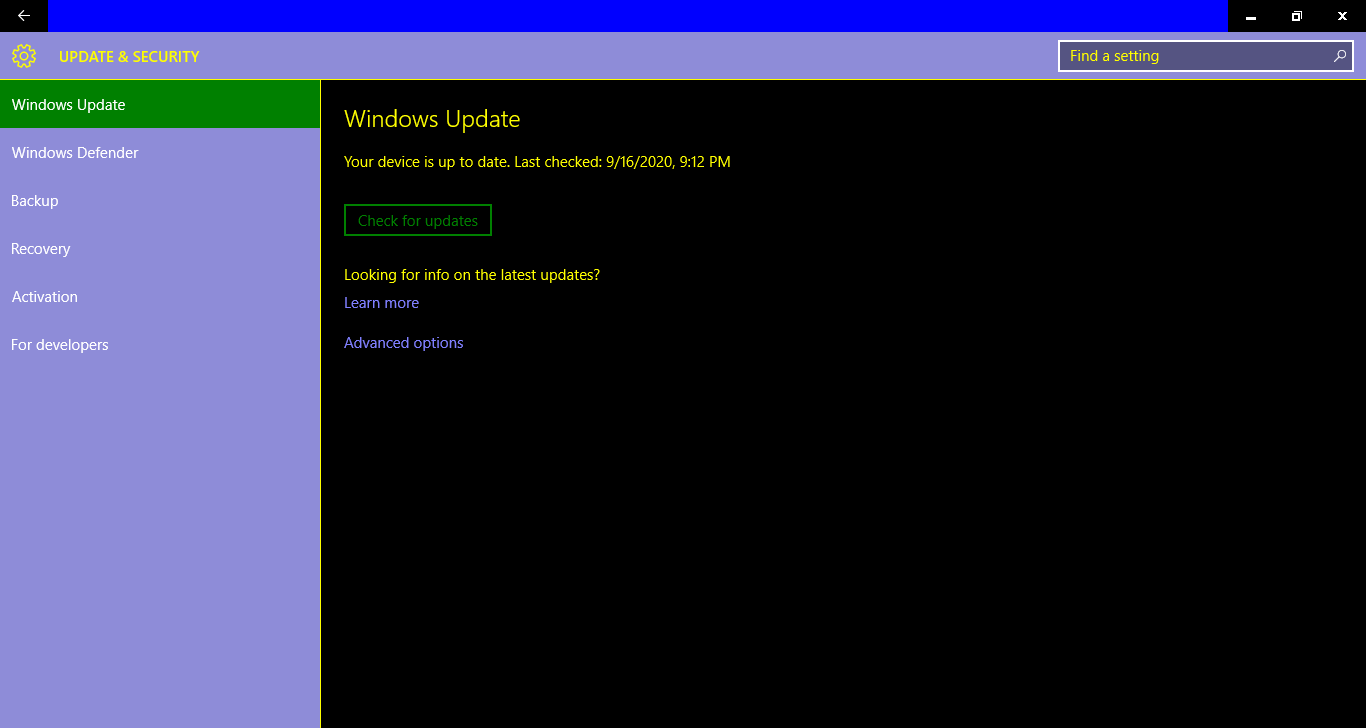
– Click on Check for Updates
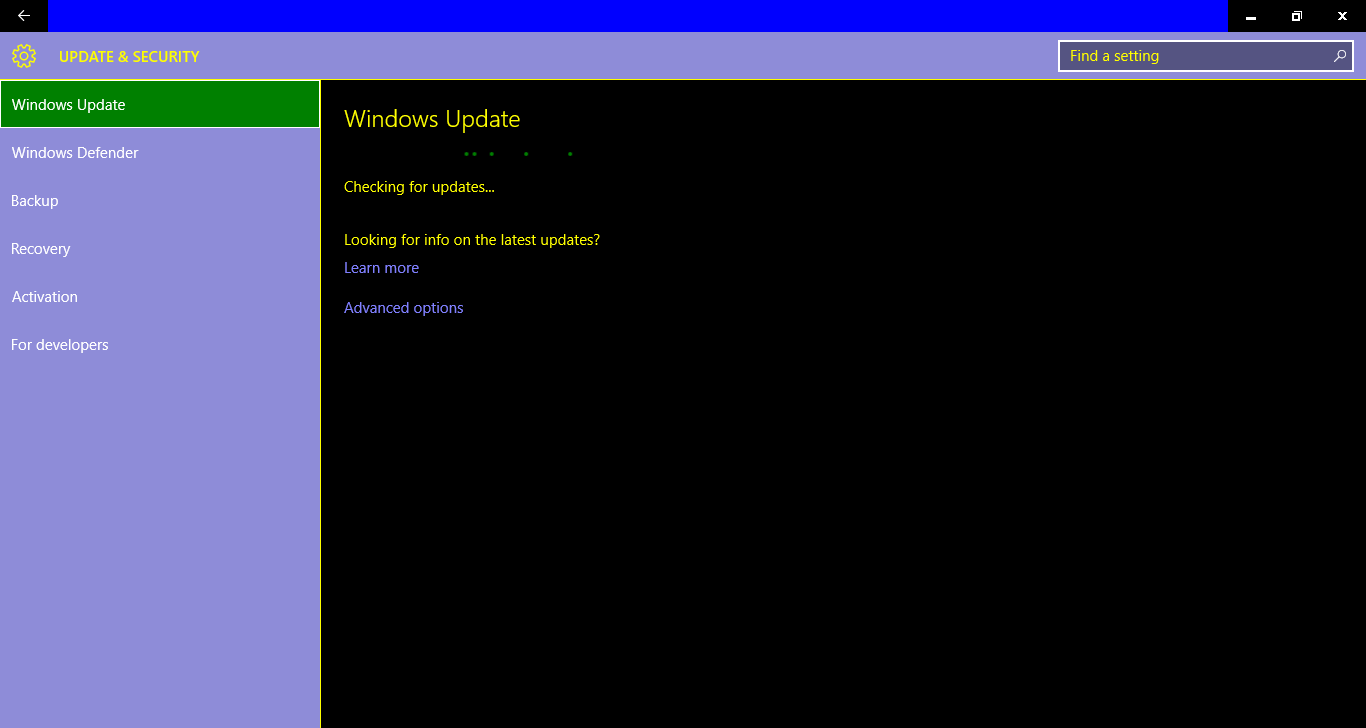
– Allow your PC to discover and install new updates. Reboot and try resetting.
6. Disable & Re-enable Reagents
Another way to resolve the PC resetting error is to disable and then enable REAgentC. This is a feature that allows you to configure Windows OS recovery, fix bugs related to resetting computers, and administer recovery options.
Here is How to Go About it
– Hold the Window Key + X simultaneously
– Select Command Prompt. Run as an admin
– In the Command Prompt Window, copy-paste “reagent/disable”
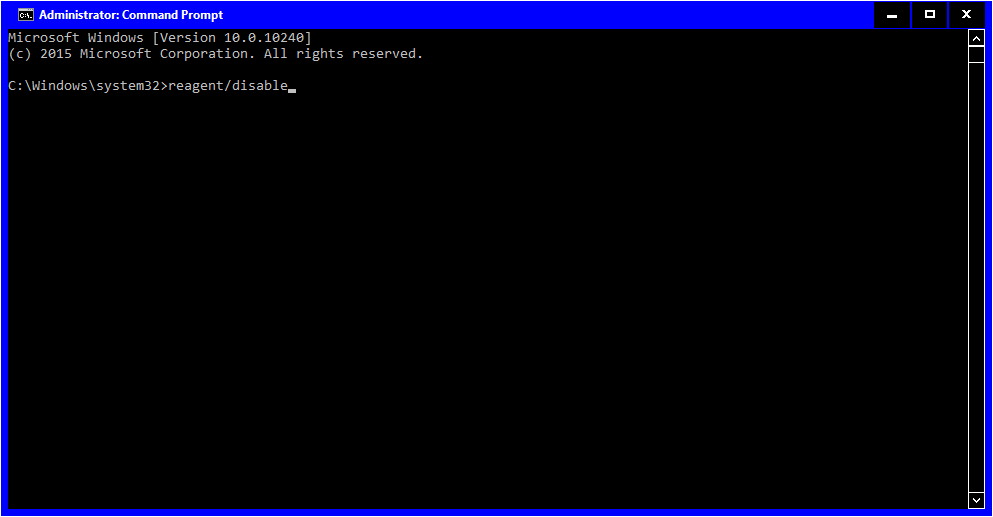
– Press Enter. Wait to 2 seconds, and REAgentc will be disabled
– Now type reagents/enable and once press the Enter key. This should re-enable REAgentc.
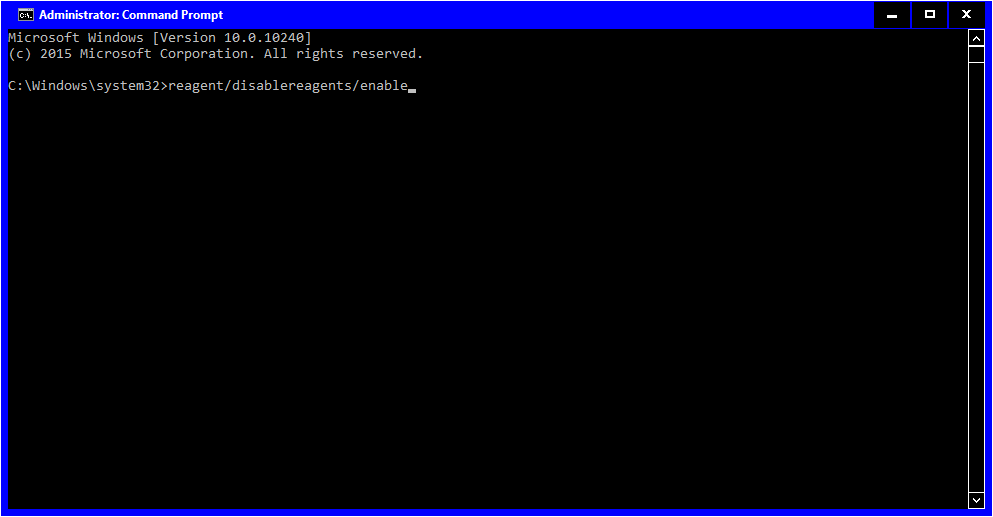
– Finally, reboot your PC and try to reset it – see whether everything works fine
7. Consider System Recovery Option
According to PC experts, faulty or corrupt registry configuration can be the root cause of your PC reset errors.
You Will Need to Diagnose and Fix as Follows:
– Go to your PC settings
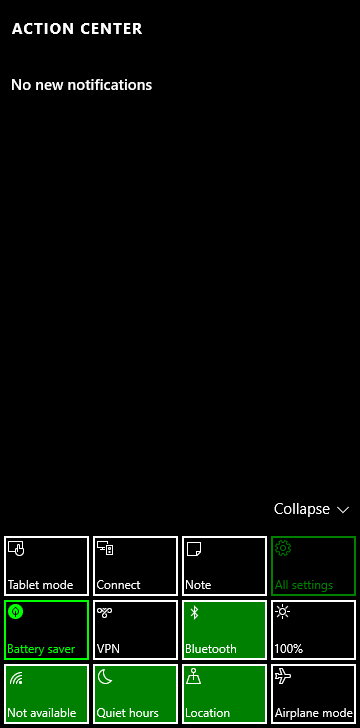
– Choose Updates & Security
– Look for the Recovery option and click on it
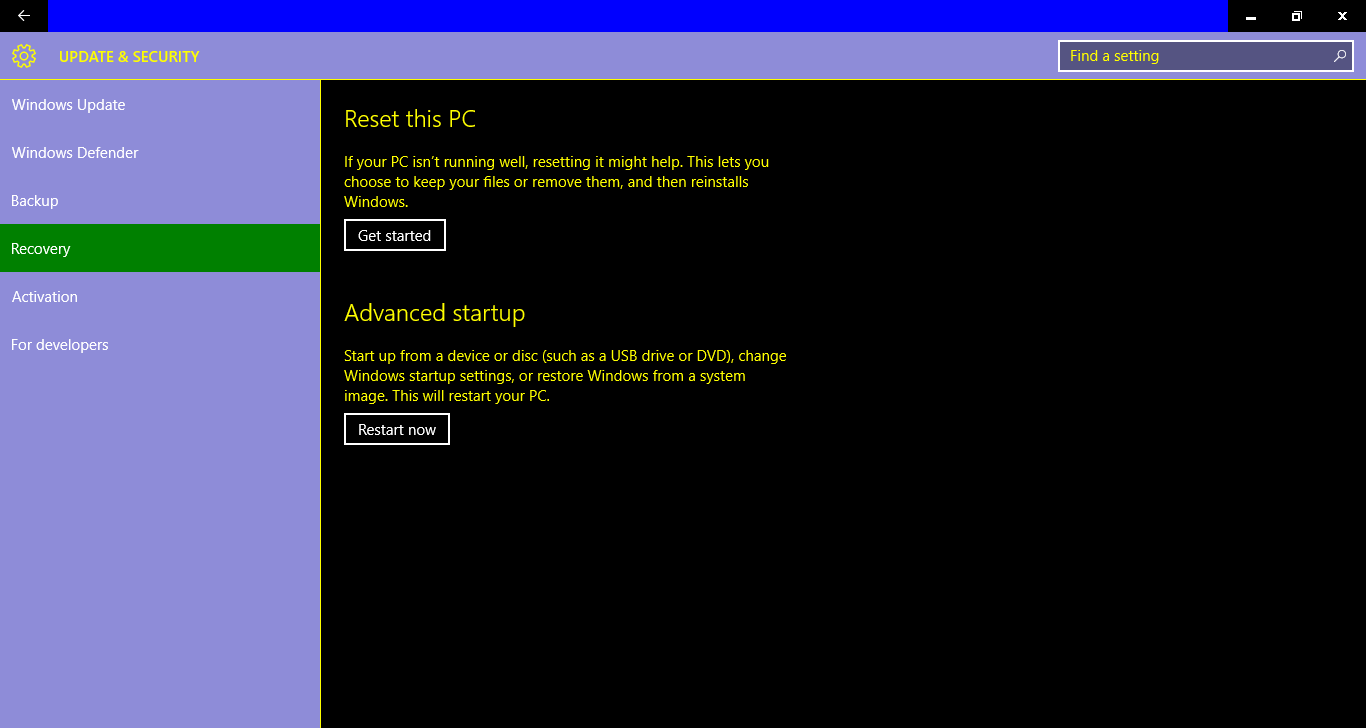
– Pick Restart now just below the Advanced Startup. This should restart your computer into a fresh startup page
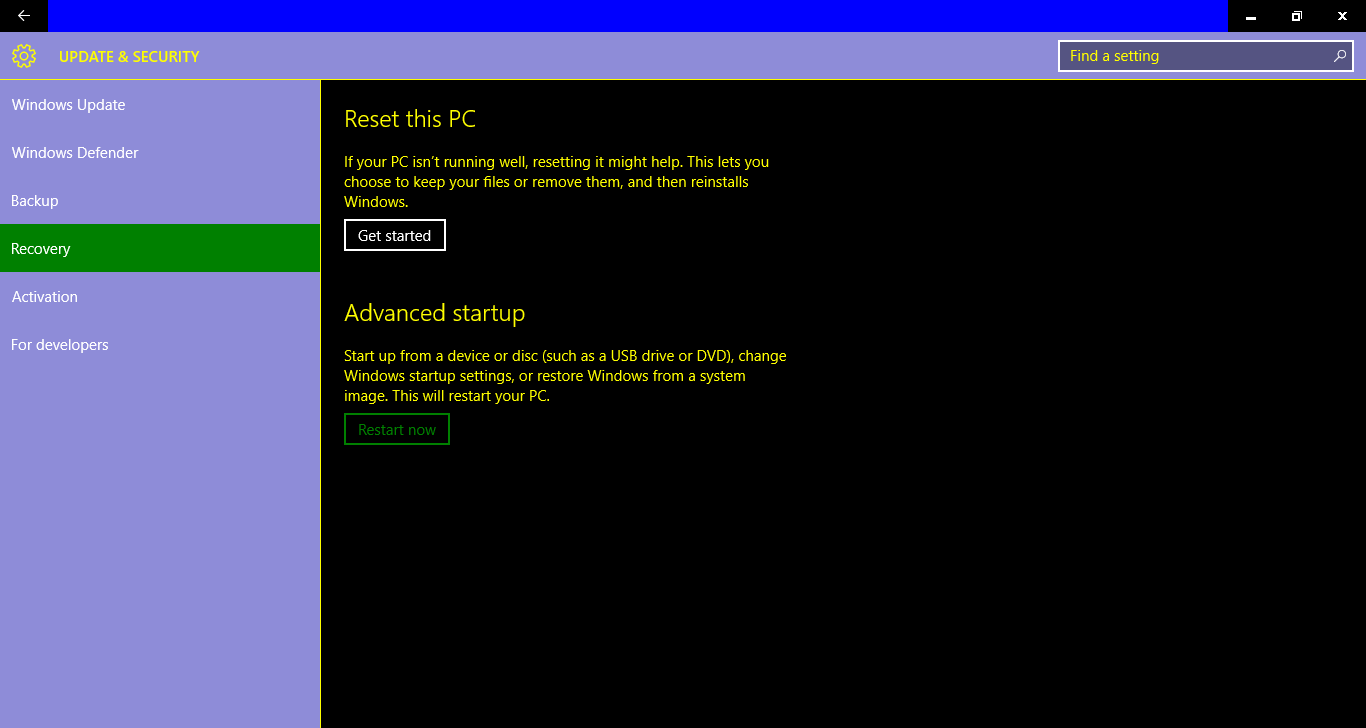
– Windows Recovery Screen will pop up. On it, click on Troubleshoot
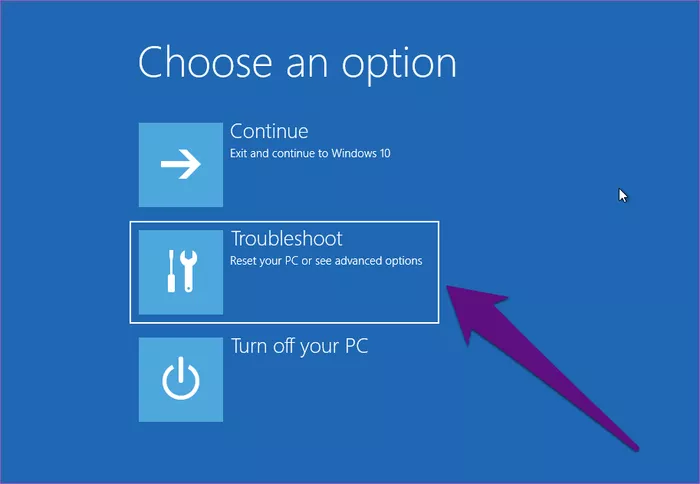
– Pick Advanced Options
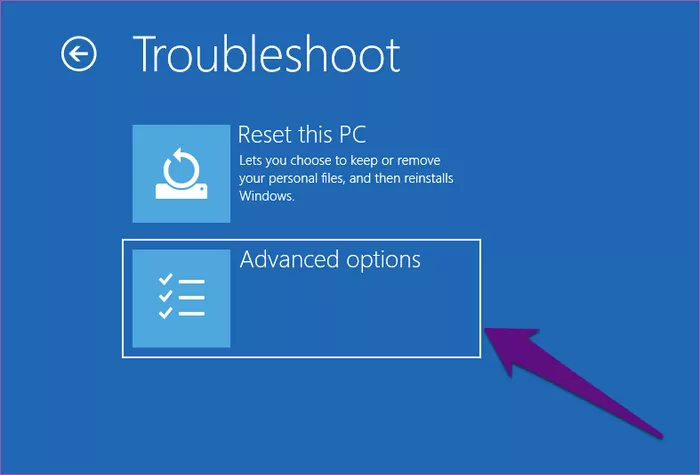
– Click on Command Prompt
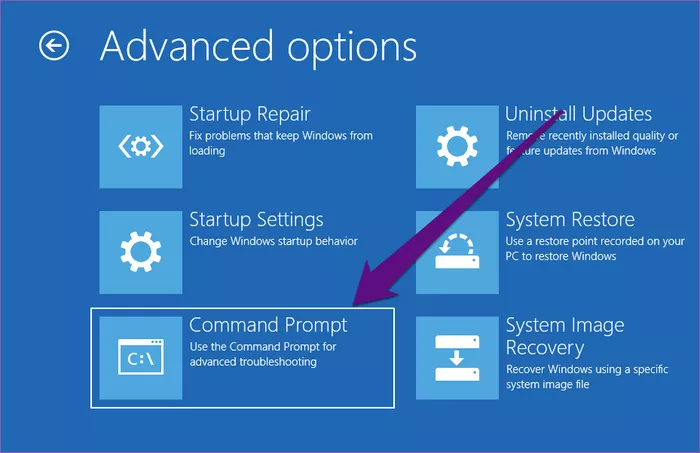
– Choose computer’s Administrator Account
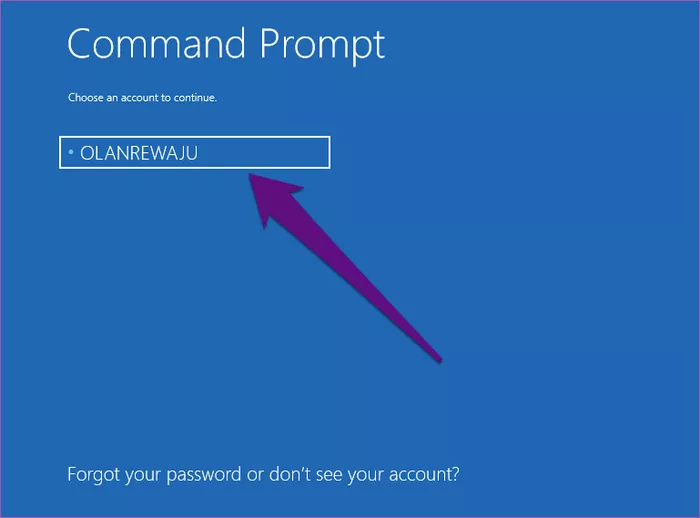
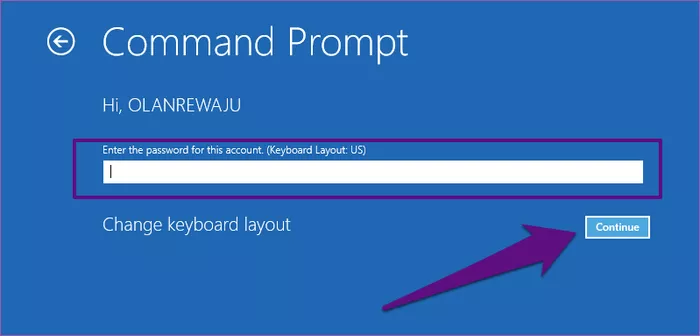
– Enter your Administrator’s Account Password or Pin. Click on Continue
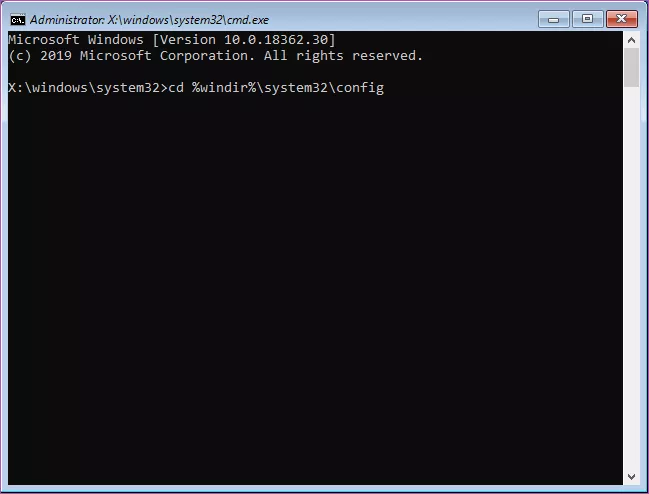
– In the Command Prompt Window, Copy and paste cd %windir%\system32\config. Press Enter
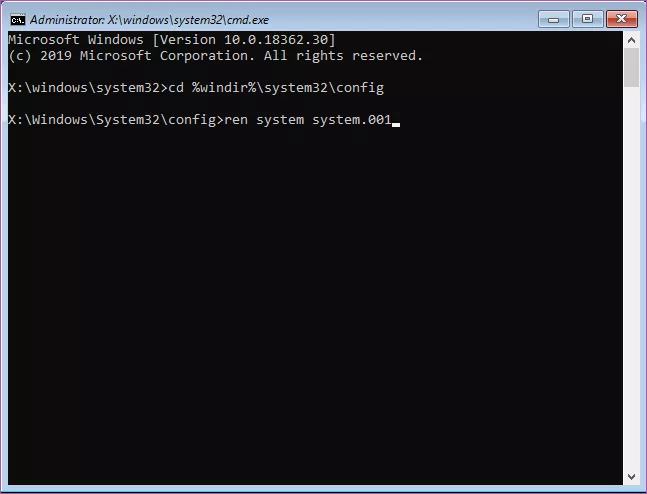
– In the ren system, copy-paste System.001. Press Enter. This will rename your PC’s system registry hive.
– Close the Command Prompt
– Click on Continue on the new page. Your PC should now work just perfectly
Final Thoughts
Regardless of why your PC won’t reset, one of the above fixes should solve the problem (that is if done correctly). If your issue persists after all these issues, you should consult one on one with your nearest computer experts.